Saturday, 11 April 2020

Top Interesting Apps - Watch Videos, Chat And Talk In Single App

Top Interesting Apps: Today we are going to share two apps which we consider as Top Interesting Apps for our users.

The key feature of these two apps are you people can watch videos together with your beloved one's who are far away with out any screen share, at the same time you can also chat while watching the video. Isn't interesting ? Not only this among two apps one app has a unique feature where you can have a phone conversation while chatting, watching video at a time.


Please go through the complete article to know more details about the applications. We are also going to share the step by step instructions and also screenshots of the apps how it looks and how to use them.

Top Interesting Apps - Watch Videos, Chat And Talk In Single App

Top Interesting Apps


The two Top Interesting Apps which we are referring is AmpMe and Rave. These are the two most interesting apps where you an avail the features which we listed above. We are going to help you with from where to download these apps and how to signup to these application and how to use them. Everything will be explained in a step by step way. I'd suggest you to please go through the details information to know more features about these applications.

Top Interesting Apps:

In the list of best android apps all time the first app we are going to start with AmpMe and then followed by Rave. These are the two best app in the current app list. The feature which inbuilt in these application make these apps as unique. We can simply call as best unique apps.

AmpMe :

AmpMe is a small company, in 2015 they released an app with their own company name called AmpMe which has become one of the best interesting apps in the current generation. This app will work on both iOS and Android devices. You can simply download from app stores.

The basic idea of this app is that it sync all the mobile phones to play the music loud. It is simple that everyone needs to use the AmpMe app  in their mobiles. As said, that it will sync the music for that One person acts like “host,” and they can play music from SoundCloud, YouTube, or their own local library and the same output will come from other devices.


In simple terms the song which was played by Host the same will be played in all the other devices which got sync. 

As mention the same app helps you to watch the YouTube videos and can chat with your beloved one at the same time. Not only video but also music but for that you need to have a premium accounts of music channels like SoundCloud or Spotify.


How To Watch Video And Chat In AmpMe ?

Many of us dont know how to watch a video and chat at the same time in AmpMe for them, please follow the below steps that will help you in installing the application and at the same time the steps also explains you on how to use the application.

Step1 : Search for AmpMe in your app store, you can see the app name AmpMe - Speaker booster please select that app as shown in the picture

AmpMe


Step2 : Once you are able to see the app tap on Install and then tap on open to open the application.


Step3 : You'll be able to see three options two are for registering. At the bottom you can see Facebook and Google through which you can register your account or else you can just simply Skip which is on top right as shown in the below picture.


Step4 : Once you skip you will be able to see a screen first you need to enter your name and once you save then you need to upload your image. Please check the below image for your reference.


Step5 : Once you done with the Name and Image you can tap on Next to continue the process. There you can see option to Locate Me , if you want to locate your self you can in the app or else you can simply Skip the step by tapping on the skip option which is on top right. As I wanted to watch video with my friend and chat .
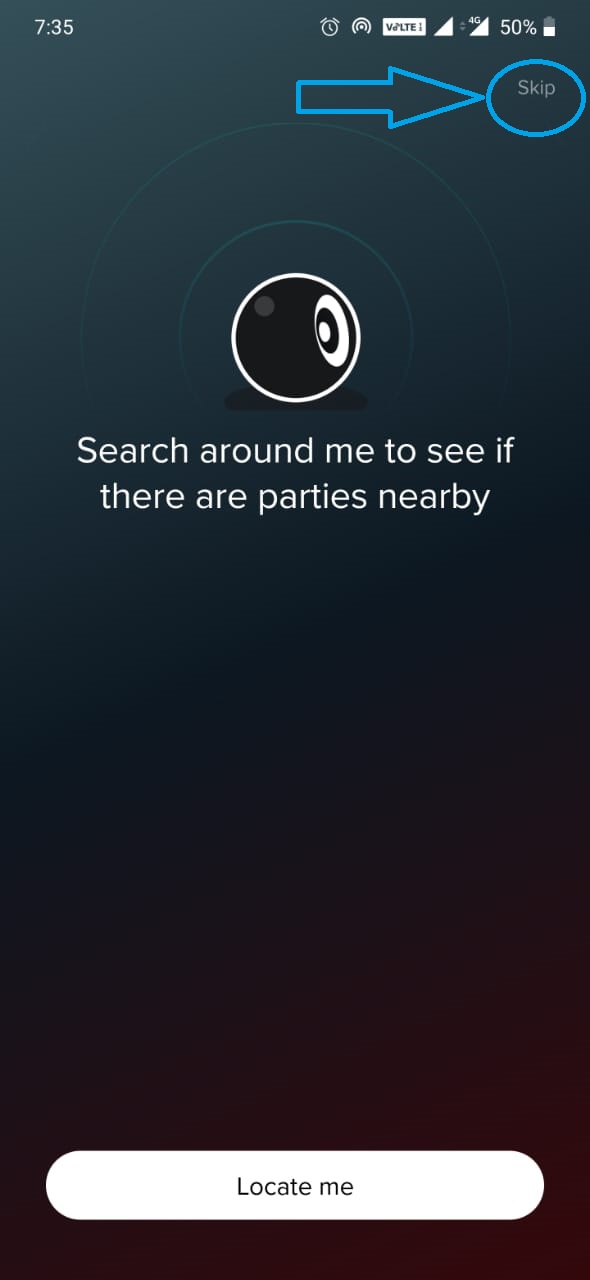

Step6 : Once you tap on skip you'll be able to see + symbol at the bottom right you need to tap on that as shown in the below image


Step7 : Once you tap on that Plus + symbol you can see a couple of option to play music, I choose YouTube because I want to watch video with my friend and also wanted to chat at the same time.

Step8 : Once you Tap on the YouTube you can see mutiple playlists, however you can search with the help of search option on top right.


Step9 : From the below picture you can see that I searched one song and tried playing by simply tapping on it .


Step10 : Once you tap on your favorite song you'll be able to see a new screen where you can find an option to add your friend. You need to tap on that.


Step11 : Once you tap on that Add Friend option you'll be able to see multiple ways to send a link to your friend, It can be handouts, Whatsapp or any other messaging apps through which you need to send a link to your friend. Choose any one way and send link to your friend


Step12 : Once he clicks on the link he can join the screen where you are playing the song only if he installed AmpMe already . I'd suggest to inform your friend to install before or else after you share the link and your friend don't have the app then it will navigate to install the app then he can join the screen.

If he already installed and once he click on the link he can directly join the screen and both of you can watch the same video and also can chat.


I hope the above steps clearly helped you people on how to install the AmpMe app and how to add your friend to watch and chat at a time. Lets check with the other App Rave.

Rave :

In the list of Top Interesting App we came up with another app named Rave. The major point for these application is to chat with your friends which watching video on the same app. Rave app allows you to Enjoy Netflix, YouTube, SoundCloud music and many more with your friend. 

The unique feature about this application is that you can also have a voice conversation in the same window of the application from where you can chat and watch the video.


How To Watch Video, Chat And Also Talk In Rave App ?

Just like the above app you need to search for the app and install in your smartphone. Please go through the below steps for clear understanding.

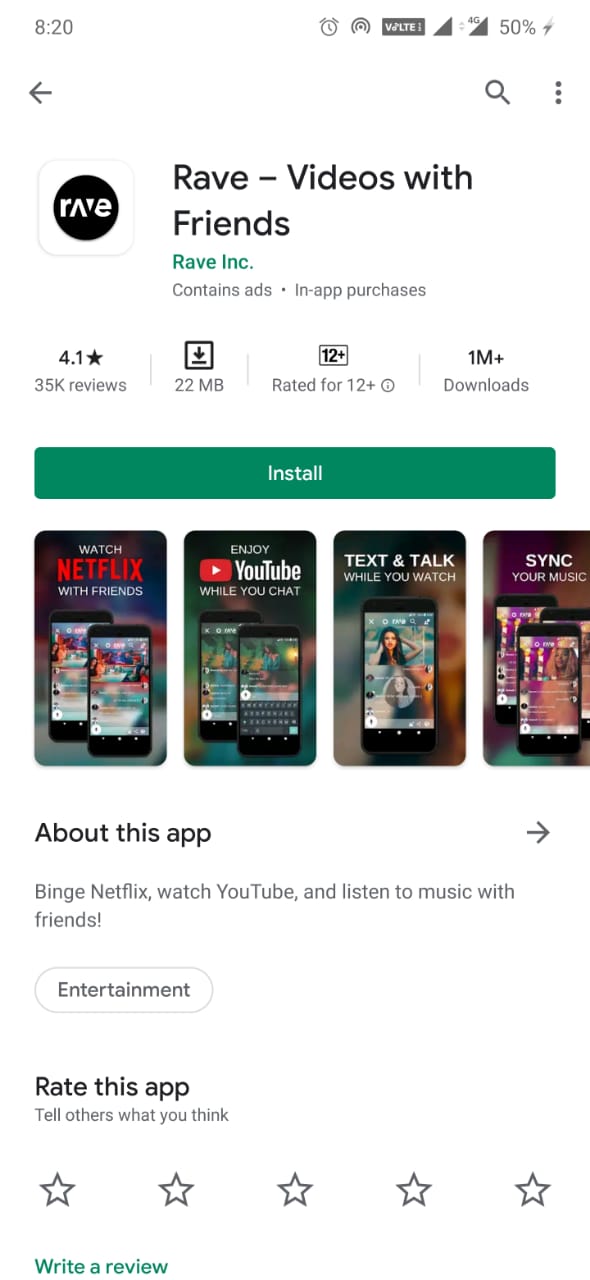
Step1 : Search for Rave app in your app stores. You need to select the app which named "Rave- Videos With Friends"


Step2 : Once you select the app please tap on install so that you can install the application. Once the app is installed please tap on open.

Step3 : Once you tap on Open you can see the below screen with a slider at the bottom you need to swipe left untill you complete the slides


Step4 : Once you done with the slide you can see the sign in page where you need to select the Gmail, Facebook or Twitter, we choose Gmail and signed in to the application and you need to allow the access whenever app request for audio or locations.


Step5 : As mentioned earlier app requests for permissions you need to hit on Okay and give permission to the app.

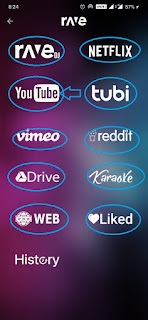
Step5 : Once you give access you can see multiple option from where you need to play the Music or video. You just need to select the platform and it will open. We selected YouTube and we can see multiple videos from where we selected one


Step6 : Once you select the video it moved to new screen where you can see your name will mention as you joined. At the bottom there will be an option to add your friend once you tap on it you will be able to sync your contact list from where you can select your friend with whom you want to watch talk and chat with .

Just like earlier app a link will be sent via messenger apps that are available and from were he can join to your screen.


Step7 : Once you invite your friend with the link. If the app is installed in his mobile he can directly join the screen where video is already playing. In the same screen you can see the option of Mic, Chat and Video playing on top.


Whenever you want to talk you need to tap on the Mic and it will turn to red color and other person will be able to hear your voice. And from the bottom you can see chat where you can text your beloved one.


Hope the above steps are clear and helped in your understanding about the features and interesting things about the apps. Please stay connected to this blog for more latest updates on the apps, gadget releases, tech tips and tricks and also technology related news.

Sunday, 5 April 2020

Top Video Editing Apps For Android And iOS - Updated 2020

Top Video Editing Apps : Most of the people interested in video editing an uploading in the social media. Video editing feature like adding background music, transitions and many more to their original video to make it more interesting for the viewers.

To edit the video which we recorded in the phone with the help of desktop applications is taking long time than expected and for that we need laptop/desktop. So as a solution for this we came with the top video editing apps that you can simply install in your mobile phones and edit the video which you recorded in your smartphones.


There are plenty of apps in the apps stores of android and iOS, however, we shortlisted few and explained below about the top video editing apps  for android and iOS. I'd suggest you to please go through the complete article to know more details about the best video editing apps for free and also about their feature and from where to download them.

Top Video Editing Apps For Android And iOS - Updated 2020

Top Video Editing Apps

As mentioned earlier there are plenty of video editing apps in the current app stores. We are going to help you with the top rated video editing and apps. You ca go through the below description to know the key features of the best video transition effect app free. 

The below list of  app are the best video editing app free and also they are the top rated by the users in the category of video editor app download for android or iOS.

Top Video Editing Apps 

1. QUIK :

In the list of top video editing apps the first app we come up with is QUIK. This app is offered by GoPro. This app is a package of multiple features. You can just simply make a normal video into an awesome one.
QUIK


Key Features: The main feature of this app is that you can add picture and music and combine it to a video. The maximum limit of 75 picture can be added to make a video. You can pull the audios and picture from the Gallery, Albums, Google Photos, Dropbox Apart from this QUIK supports motion pictures.
QUIK Screenshots

Another interesting feature is inbuilt themes. There are 23 themes available that you can apply to your videos and multiple transitions and graphics. Fonts, Filter and Slow motion, trim the video. Almost every feature that requires for editing video can be easily available in this application. There are 100+ of free music is available that you can apply to your editing. The best thing is you can download this app for free in both iOS and Android App stores.


2. Video Editor By WeVideo Inc :

Apart from QUIK there is another video editor app that is used to edit the videos or add the photos in a slide and mix with audio clip is Video Editor app offered by WeVideo Inc.


Video Editor


Key Features: There are multiple features which are inbuilt in this application, The main feature is trimming and arranging the video clips another interesting feature is editing the photos and videos from your gallery or live from your device’s camera which is much more interesting.

Video Editor Screenshot
Adding the titles and caption to your videos, time line settings for background music are the interesting feature in this application.

Along with these feature there are themes, voice recording and good number of music in the inbuilt music library of this application.

3. KineMaster :

We are share the best video editing apps for Instagram or other social media. In the list KineMaster is one of the best video editing application that you can simply install in your smartphones and use it. 

KineMaster

Key Features: KineMaster is the complete package of features. The main feature that makes this application bit different than other video editor because of its features like multiple video layers, blending modes, voiceovers, chroma key, speed control, transitions, subtitles, special effects, and so much more.
KineMaster Screenshot1

KineMaster Screenshot2

KineMaster Screenshot3

Other interesting thing about his application is YouTubers, TikTokers, Instagram users, journalists, educators, marketers, and vloggers almost every one who works on video editing either professionally or for fun they prefer to use KineMaster. The editing tools like Crop, Slice, trim are the best feature and mostly used in this application


4. Viva Video :

Another video editing app that comes under this list of best video editing apps is Viva Video. It is not less than the earlier listed apps. It is also a package of plenty of features. This application is offered by QUVideo Inc.


Key Features:  This has plenty of fun features, slow motion edits.This application is mostly know as Free video maker app. Blur background, speed up videos, slow down videos are the key features of this application. Adding text, music to your videos. 


You can also mix music with the images and make a video. Just like in image background blur we can simply blur the background of the video using this application. And the best part is that it is free and no need to pay any penny. You can simply install the application and you can use the features directly.


5. FuniMate :

Funimate is the another video editing app that helps many of the social media user to create and share the best videos. This app helps you to change the normal daily routine videos into very interesting with the help of feature in built in it.

Funimate


Key Features: The main features that are video effects, there are around 100+ effects that you can directly apply to your videos. Not only that you can create your own effects also. Adding Emojis, texts and sticker on your videos to make the video more interesting. Video merging, trimming and cutting all the features were enabled.


Funimate Screenshot

Edit the videos, crop and loop the videos. You can directly share the edited video to other contacts from the app itself. You can use the other messaging apps access and send the edited video directly.

The above listed applications are very useful for editing the videos. You just need to download from your app stores and can use it. Stay connected to this blog for more latest updates on the apps, Gadget releases, tech tips and tricks and also technology related news. STAY SAFE :)

Top Photo Editing Apps For Both Android And iOS

Top Photo Editing Apps:We are going to share the top listed apps currently that help us in editing the photos. Now a days every one has smartphones and most of their works will be done using the smartphone. So why to open laptop/desktop when we have apps that help us in photo editing.

Below are the list of best photo editing apps for selfies also, people are interested in selfies can edit their photos and get more likes and comments in their social media. Please go through the article in details to know more feature and from where to download those top photo editing apps everything explained clearly.

Top Photo Editing Apps For Both Android And iOS

Top Photo Editing Apps


In the category of Photo editing apps there are plenty of app available in the app store.So we just shortlisted few as per the user rating and top downloads.

Top Photo Editing Apps

1. Snapseed :

In the list of best photo editor app for Android or iOS Snapseed is one of the best photo editing apps among plenty.

Snapseed


Snapseed can be considered as a professional edition and the UI is very simple to use. The another big factor of this application is that it was developed by the top search engine Google.


Key Features: There are around 29 tools and filters,which includes Healing, Brush, Structure, HDR,.

One of the interesting feature of this application is that you can see double exposure feature.

Double Exposure – You can simply blend two photos, choosing from blend modes that are inbuilt in the application.,


Stylish text can be easily added on your photos, Glamour Glow, that help you in enhancement of glow to your pics and many more feature you will be able to see it.

One of the best photo editing app for free to use in mobile phones for both Android and iOS.

2. Adobe Photoshop Lightroom CC :

In the list of best photo editing apps the next app is Adobe Photoshop Lightroom CC. Many of us already may aware about photoshop which is the ulitmate to tool for photo editing and video editing and many more. This application is also developed by Adobe.

Adobe Photoshop Lightroom

Key Features: The features that makes this app interesting are  adjust the light, detail, color, distortion, and grain of your photos. Adobe cloud which help you in the backup of your original and edited photos. Predefined filters help you in editing the photos like a pro. People can easily capture photos using the modes in the app like HDR or Raw.

Adobe Photoshop Lightroom Screenshot

The unique factor about this application is the web galleries gives you a feasibility to easily showcase your photos online. The edits you have done on the photos can be sync seamlessly.


3.PicsArt :

Another app which is best photo editior and not less that Snapseed and Adobe lightroom is PicsArt. One of the best photo editor.


PicsArt

Key Features: PicsArt not only used for touchup or filter it has features beyond that to make your pics more interesting. In simple we can say that it is a mix of photoshop and paint. Yes, you can easily edit the pics with filters and then use brushes to enhance the photos.

PicsArt Screenshot

The features of the brushes where sparkle, decorating with text, adjusting a color can be added to your edited photos. As it can also be used like a photoshop, in simple you can cut a part of the image and layer it on another image.

There are few in-app purchases however, as per your need if you want you can purchase them. This application can be downloaded with out paying any penny from the app stores of both iOS and Android


4. Prism Photo Editor :

Prism Photo Editor is the other photo editor app that is available for both Android and iOS  mobiles. You people can simply download from the app store with out paying anything as it is free of cost.


Prism Photo Editor


Key Features: Prisma has it's own online community so once you edit the pics you can simply post in the community. Prisma is unique than other photo editing apps because it turns you pics into artistic like paintings and drawings. Just like painted by Picasso, Munch, or even Salvador Dali. One of the best and key feature of this application. 

Prism Photo Editor Screenshot

Most of the features were free and if you want to have any additional filter then you people need to pay for that.


5. Instagram :

In this category the other app this is well known to everyone if Instagram. It may surprise you but this app is third largest social networking app after Facebook and YouTube.

Instagram

Key Features: This application gives you all basic photo editing tools you might need, including filters, effects, text, stickers, overlays, and more. What ever app you may use to edit the photos you'll definitely try to upload in Instagram so they itself inbuilt the filters to make you work simple and easy.

Instagram Screenshot

The above listed are the few top rated photo editor apps that help in editing your photos. Along with that we have also shared the online community apps which also have the editing filters. Please stay connected to this blog for more latest updates on the apps, new tech gadget releases, technology new and tips and ticks that help you in our day to day tech life. STAY SAFE :)

Saturday, 4 April 2020

How To Install Windows10 Using USB Flash Drive - Updated 2020

How To Install Windows10: If you are looking for simple steps on How To Install Windows10 in your laptops or desktops you reached the correct article.

We are going to share the precise details on what are the laptop/desktop requirements to install the windows10 OS and also will help you with the step by step process on how to download the ISO file from the Microsoft website and also how to use USB flash drive to install windows 10 in your system.

I'd suggest you to please go through the complete article to know detailed instructions on how to download and How To Install Windows10 OS. In the below article you can find how to install windows10 step by step process. So, please go through the complete article

How To Install Windows10 Using USB Flash Drive - Updated 2020

How To Install Windows10

Before we jump in to direct windows 10 installation steps, there are certain requirements that need to be arranged before we start working on installing the Windows10 in your machines. Today we are helping you with steps on how to install windows10 from USB. So please follow the step by step instruction to understand what are the requirements


The major requirements are listed below:
  • Windows10 ISO File - This need to be download from Microsoft website
  • Rufus Application - This will help in installing ISO file to USB Flash drive
  • Laptop/Desktop with certain specification which were listed below
  • USB - In which we are going to install ISO file using Rufus application
Let's start with downloading the Windows10 ISO file from the Microsoft official website.

Step 1: Click on the link and then click on the Download Tool Now. Here is the screenshot for your reference
Windows10 ISO Download

Step 2: Once you click on that Download Tool Now button, Media creation tool with some version will be downloaded. You just need to install that tool and open it.

There will be a couple of instruction which is easy to understand and follow to complete the process.
  • Read through the license terms and then accept them with the Accept button.
  • Choose Create installation media (USB flash drive, DVD, or ISO file) for another PC and then select Next.
  • Choose the Language, Edition, and Architecture you want the ISO image for. It will be good if you select both at the time of Architecture of Windows10 ISO file selection as you can use 32-bit or 64 bit as per your requirement later.

Step 3: Here you will be seeing an option to download file for USB Flash Drive or ISO file. As we are looking for ISO I'd suggest select ISO file and click next and then select the folder where you want to download the ISO file.

Till now we downloaded the ISO file. Now lets move to USB flash drive where we need to copy this ISO file to USB for this a third party application which is Rufus needed.

Step 1: Just click on this https://rufus.ie/ and download the latest version of Rufus in your system.

Step 2: Once you install please insert USB to your laptop/system and open the Rufus application you will be able to see a window just like below
USB Flash Drive Using Rufus

where at top the Device should be listed your USB device name and under Boot selection please select ISO file which we downloaded earlier and don't make any other changes and hit START button and it will take few moments to copy the ISO file.


There will be a pop sometime before copying that USB will be formatted. Select okay for that and format the USB before you copy the ISO. Once it gets completed you can see the status bar and you can eject the USB.

Now we have successfully complete the downloading the copying the Windows10 ISO file in USB Flash drive. We need to install the same in our machines. For that below are the system requirements

CPU: 1GHz or faster supported processor
RAM: 1GB for Windows 10 32-bit or 2GB for Windows 10 64-bit
Storage: 32GB of space or more

Once our system or laptop is available and meets the above requirements please follow the below steps to know about how to install windows10 in laptop


Step 1: Connect USB to your system and then Please access your computer's BIOS or UEFI by holding a specific key during the boot process the keys may be Escape, F1, F2, F12, or Delete. 

So, you need to figure out which key your computer uses or else you can browse the internet and get to know which key for your brand system/latop. After that shutdown and try to press that particular key.

Step  2: Once you are able to open the Boot options you need to find the setting for boot order it can be in a section called "Boot" or "Boot order."

The order helps you to understand from where system loading the operating system. In that order you need to keep your USB device at first so that system will load the OS from the USB Flash drive first.

You'll be able to see the option below on how to move the USB Flash drive on top and also you need to disable Secure Boot if  your system enables it already. 


Once everything is on place save the changes and reload the system then it will enter into Windows10 installation setup. Where you can select the drive/format the drive in which you want to install the windows 10 OS and then click on Install Now button and follow the onscreen instructions that will help you in complete installation of Windows10. Hope the article helped on How To Install Windows10. 

Please stay connected to this blog for more update on the technology tips and tricks, latest gadget releases, app released, technology news.